
Recycool Technical Design Document
 This document outlines the technical goals, risks, and decisions made during the production of the project, along with the code organization and style.
TABLE OF CONTENTS
- Engine version
- Third party libraries and plugins
- Target platform
- Gameplay features overview
- Code architecture
- How to add game content
- Asset guidelines
- Code style guide
- Version control
- Deployment Instructions
ENGINE
Project was developed using Epic’s precompiled Unreal Engine 5.7.4 release from the Epic Games launcher. This engine version was chosen due to the UnrealMetaXRPlugin not having a stable release for version 5.8.2 at the time of development.
THIRD PARTY LIBRARIES AND PLUGINS
The only two external plugins used are Meta’s UnrealMetaXRPlugin and Microsoft’s VisualStudioTools for Unreal Engine. The UnrealMetaXRPlugin provided several utilties for simulating XR gameplay and tools for deploying to our target platform. VisualStudioTools provided better IDE integration with Microsoft Visual Studio.
Both plugin’s binaries are provided in version control and are enabled by default in the .uproject file, and thus do not need to be installed by any individual team member’s engine prior to working on the project.
For deployment, the Android SDK (v32), NDK (v27.2.124), and Java JDK (can be bundled) must be installed. This installation process can be automated using Unreal Engine’s turnkey tool. Refer to this article for instructions.
TARGET PLATFORM
This project was developed in mind specifically for standalone deployment for the Meta Quest 3. With this is mind, team members must have Android enabled as a target platform within their engine installation.
CORE GAMEPLAY FEATURES
This is a brief overview of the core gameplay features within the game.
LOCOMOTION
Player can move around the environment by teleporting using the right controller joystick, and snap turn using the left controller joystick. Player can also utilize room space and headset tracking for locomotion.
INTERACTION
Player can interact with objects within the play space by press and holding the Grip or Trigger buttons on their motion controller while pointing at the interactable objects. Interactable objects will be indicated by an outline or highlight when the player points at them. This interactions can be performed from a distance.
TRASH RECYCLING
Player can pick up and hold trash objects, and place/throw them into disposal bins. Disposal bins can opened and closed.
TRASH DISPENSING
A trash object will be spawned into the play space when the game starts. A new trash object will spawn when the player successfully recycles their current piece. If the player incorrectly disposes of a piece of trash, the item will be redispensed.
LEVEL PROGRESSION
When the player recycles a specific number of trash objects,trash dispensing will be paused, and they will be provided a spray can to add graffiti to the walls. Once finished, the player will begin an additional round of recycling.
SPRAY PAINTING
The player can use a spray can to add graffiti to the walls. The player can activate the spray can by shaking it. The number of sprays the player can perform is proportional to the score from the prior recycling round.
TRICK SHOTS
Trash objects will maintain an internal score which is increased when the player performs feats like bouncing it off of the ground and walls. This score resets when the player grabs the object.
SCORE
A score will be measured throughout the game, which is equal to the sum of all successfully recycled trash, minus any penalties from incorrectly recycled trash.
CODE ARCHITECTURE
UML
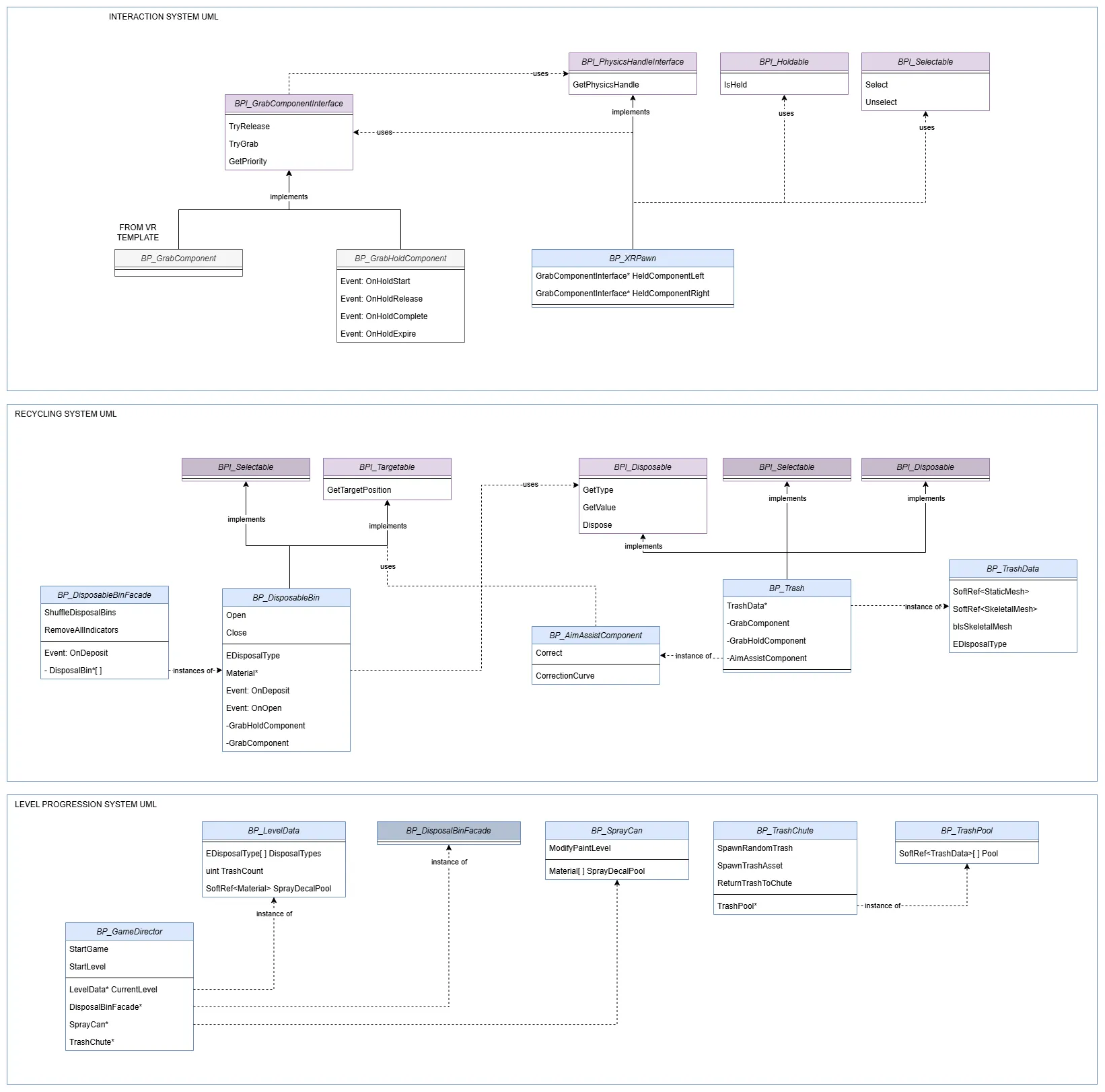
OBJECT CLASSES
VR TEMPLATE (found within XRFramework folder)
- BP_XRPawn
- Player pawn class, responsible for locomotion, interpretting input events, and driving interaction. Modified from UE5 VR Template’s default pawn, with some additional logic to support additional grab component types (see grab component interface).
- BP_GrabComponent
- Actor component class, core component for grab and physics based interactions. Modified from UE5 VR Template to replace object parenting attachment logic with physics handle driven interaction.
RECYCOOL CORE (found within StreetArt folder)
- BP_HoldGrabComponent
SceneComponentclass, drives the ranged grab and hold interactions. Hold interaction must be maintained for a specified duration for interaction to be complete. Has event dispatchers for interaction start, cancel, and completion events. Within actors, these events are usually used to delegate behavior to other components (like the traditional grab components) for gameplay interaction.
- BP_Trash (and BP_TrashSK)
Actorclass, gameplay object for trash, spawned at runtime. Recieves aTrashDataobject reference during constuction for runtime information. Contains an internal disposal type variable, corresponding to its correct type of disposal bin.
- BP_DisposalBin
Actorclass, gameplay object for disposal bins, placed statically within the level. Has an exposed disposal type enum and material instance, which will be added to the base and lid. Uses a physics constraint for Lid attachment. Has two methods,OpenandClosewhich are driven by motors on the physics constraint and open and close the bins.
- BP_DisposalBinFacade
Actorclass, contains utility methods for interacting with all disposal bins. Placed statically within the level. Automatically maintains references to all disposal bins with the level. Main interface used by GameDirector for disposal bin related gameplay events.
- BP_TrashChute
Actorclass, responsible for spawning random trash within the level. Statically placed within the level, has an exposed parameter for aTrashPoolreference. Given a set of disposal types, it will randomly sample the trash pool for a data asset, load the appropriate soft referenced data, and spawn a trash actor at theSpawnPointscene component.
- BP_SprayCan
Actorclass, interactable object responsible for detecting shake gestures, and applying decals to walls when the spray can is activated. Statically placed within level. Hides and unhides during spray gameplay phase. Exposes a pool of decal material references that are randomly sampled and loaded at the time of spraying.
- BP_GameDirector
Actorclass, responsible for monitoring and advancing level progression. Acts as the glue between other core gameplay classes. Statically placed within level. Maintains player score, and exposes parameters for other core gameplay object references.
INTERFACES
- BPI_Disposable
- Interface for any object that can be disposed within the disposal bins. Implemented by
Trashobjects.
- Interface for any object that can be disposed within the disposal bins. Implemented by
- BPI_PhysicsHandleInterface
- Interface for any object attempting to start grab interaction events. GrabComponent will poll motion controller owner for physics handle by hand type. Implemented by
XR_Pawn.
- Interface for any object attempting to start grab interaction events. GrabComponent will poll motion controller owner for physics handle by hand type. Implemented by
- BPI_GrabComponentInterface
- Interface for any grab component class to be polled by player input events. Notable implementers are both
GrabComponentandGrabHoldComponent.
- Interface for any grab component class to be polled by player input events. Notable implementers are both
- BPI_Holdable
- Interface for holdable objects, objects with these interface may not be eligible for grab events if they are already held. Implemented by most dynamic interactables.
- BPI_Interactable
- Interface for gameplay widgets that needs to recieve interaction events from script.
- BPI_Selectable
- Interface for objects that want to implement hover events for player point interactions.
- BPI_Targetable
- Interface for objects that want to be eligible for correction via the
AimAssistComponent.
- Interface for objects that want to be eligible for correction via the
PRIMARY DATA CLASSES
- BP_LevelData
- BP_TrashData
OTHER CLASSES
- BP_AimAssistComponent
SceneComponentclass, must be attached to a physically simulated primitive scene component. Has an exposed methodCorrect()which will predict the path of its attached parent, and do a sphere trace at the predicted next hit location. If it detects a target object, it will partially correct the velocity to one that will reach the object’s target position. The correction is proportional to the similarity of the normalized original velocity and the normalized totally corrected velocity.
- BP_CameraFacingComponent
SceneComponentclass, when enabled, will change its world rotation to face the player camera every frame. Used for dynamic objects like Trash with in-game UI elements.
- BP_Widget
Actorclass, statically placed within level, takes aWidgetBlueprintClassreference, and sets a 3D Widet components to a new widget instance of that type. Used to maintain consistent pixel density for in-game menus which largely do not require game state. (updates are pushed)
- BP_InteractableWidget
Actorclass, similar to theBP_Widgetclass, but also has aGrabHoldComponentfor user interaction. Used for the main game menu.
HOW TO ADD CONTENT
DATA ASSETS
Trash and level information is read at runtime from data assets derived from the TrashData and LevelData primary data assets respectively. See the Game/StreetArt/DataAssets folder within the project repository. New data assets must be prefixed with DA_.
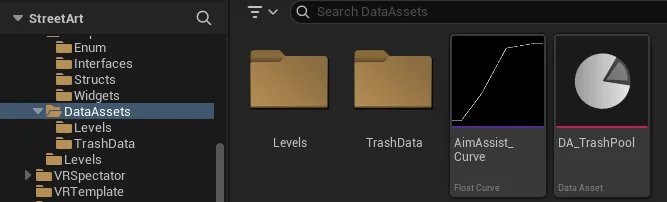
When creating new trash data assets, they must also be added to the TrashPool data asset in order to be spawned by the TrashChute object. This data asset can found in the root of the data assets folder. Modifying this pool can be useful for testing new content to make sure it follows look and feel standards.
Level parameters can be modified via the level data assets within the Game/StreetArt/DataAssets/Levels folder.
ASSET GUIDELINES
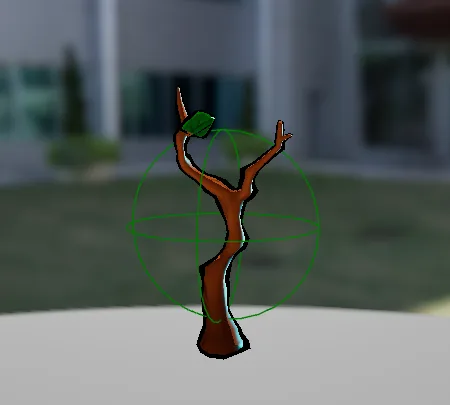
When importing new static meshes for trash assets, it is important that the collider is setup properly for the static mesh. Specifically, the mesh must only have one sphere collider, and no other colliders. This is important for bounce behavior to be inuitive for the player, and for the aim assist component to be able to properly correct the velocity.
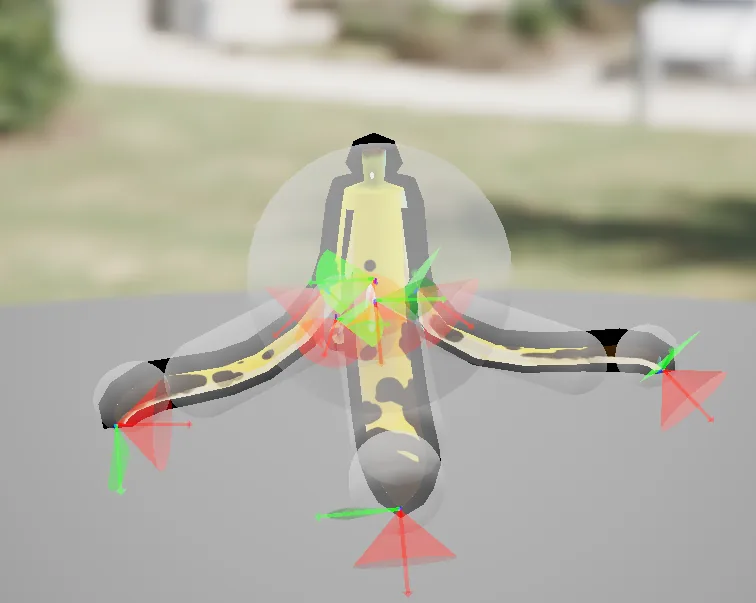
Skeletal meshes are slightly more complicated. Their physics asset must have one large spherical collider on their root bone, with a 0.5 kg weight. All other bones must be small, not extend beyond the root’s spherical collider, and have minimal weight. See /Game/StreetArt/Art/SK/Banana/SK_Banana_Physics for reference.
For both static and skeletal meshes, they are required to have two material slots. The first material slot must be for the mesh outline which will be set by the Trash gameplay object at runtime, and will change upon hover events. The second will be the diffuse material, and will not be modified at runtime.
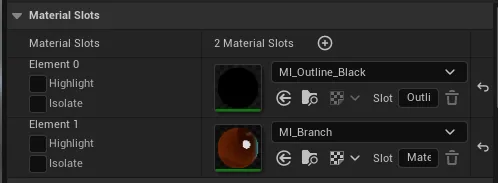
Please import mesh assets into the /Game/StreetArt/Art/SM and /Game/StreetArt/Art/SK folders for static and skeletal meshes, and ensure to use the appropriate prefix naming convention (SM_ or SK_).
CODE STYLE
We follow Epic’s C++ and Blueprint style guide. Most notably, content files use a underscore separated type prefix naming convention. Names, methods, and parameters all otherwise use pascal case. Boolean parameters must be prefixed with a lowercase b.
For more information, please see Epic’s listed coding standard.
VERSION CONTROL
We are using Perforce for our chosen version control. It is the industry standard, and has robust integration with Unreal Engine, which is less easily maintained with decentralized version controls like Git due to its large binary files. It also lends itself to a branchless trunk based development workflow, which helps prevent merge conflicts and wasted work. See Ari Arnbjörnsson’s talk (Epic Games Technical Developer Relations Team) .
Our depot is located within the MEAE Perforce server at //C17-StreetArt.
Our server is using the traditional classic Depot, as opposed to streams. We include editor and plugin binaries to ensure content teams not have to recompile the editor. The timeline of the project was short enough we chose not to use binary metadata storing options like UnrealGameSync. This repository houses game files, in addition to DCC files so that they are easily shared among the team. Please store DCC files within the //Depot/DCC folder. We use Jase Lindgren’s universal p4ignore.
PACKAGING/DEPLOYMENT INSTRUCTIONS
Make sure you have properly setup your android development environment for packaging using Epic’s guide, including the SDK, NDK, and Java paths within ProjectSettings/Platform/Android SDK.
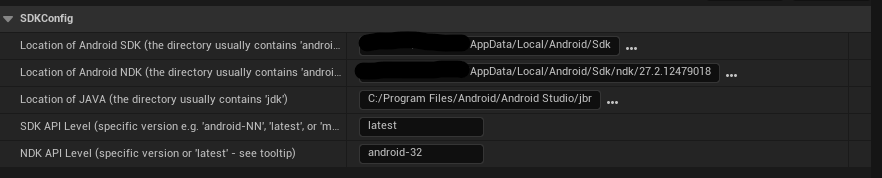
One way to double check your development environment is correctly configured is to go to Platforms/SDK Management/Android/Install SDK and it should succeed.
You can package the project by following going to Platforms/Package Project/Package Project, just make sure your deployment platform is set to Android. This will create a file containing the .apk necessary for quest deployment via the Meta Developer Hub. See this guide for more information on how to deploy the .apk to the headset.
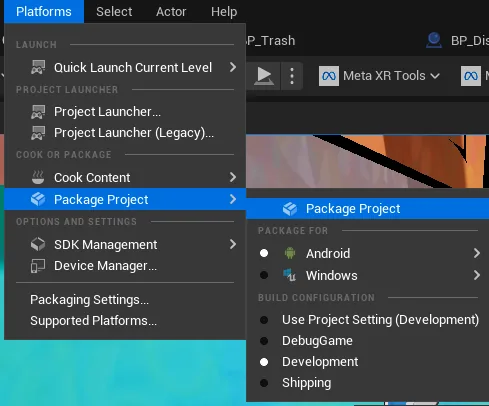
Otherwise, if you have enabled USB debugging for your headset by following this guide, you can use the quick launch feature from with the Platforms\Quick Launch dropdown. Please note, quick launch is not compatable with Quest 2 deployment due to reliance on Android File System.